
Appearance
Build and release your home page
The store builder separates work in progress from what shoppers see. A draft can change freely; a saved version is a snapshot; releasing a version makes it live.
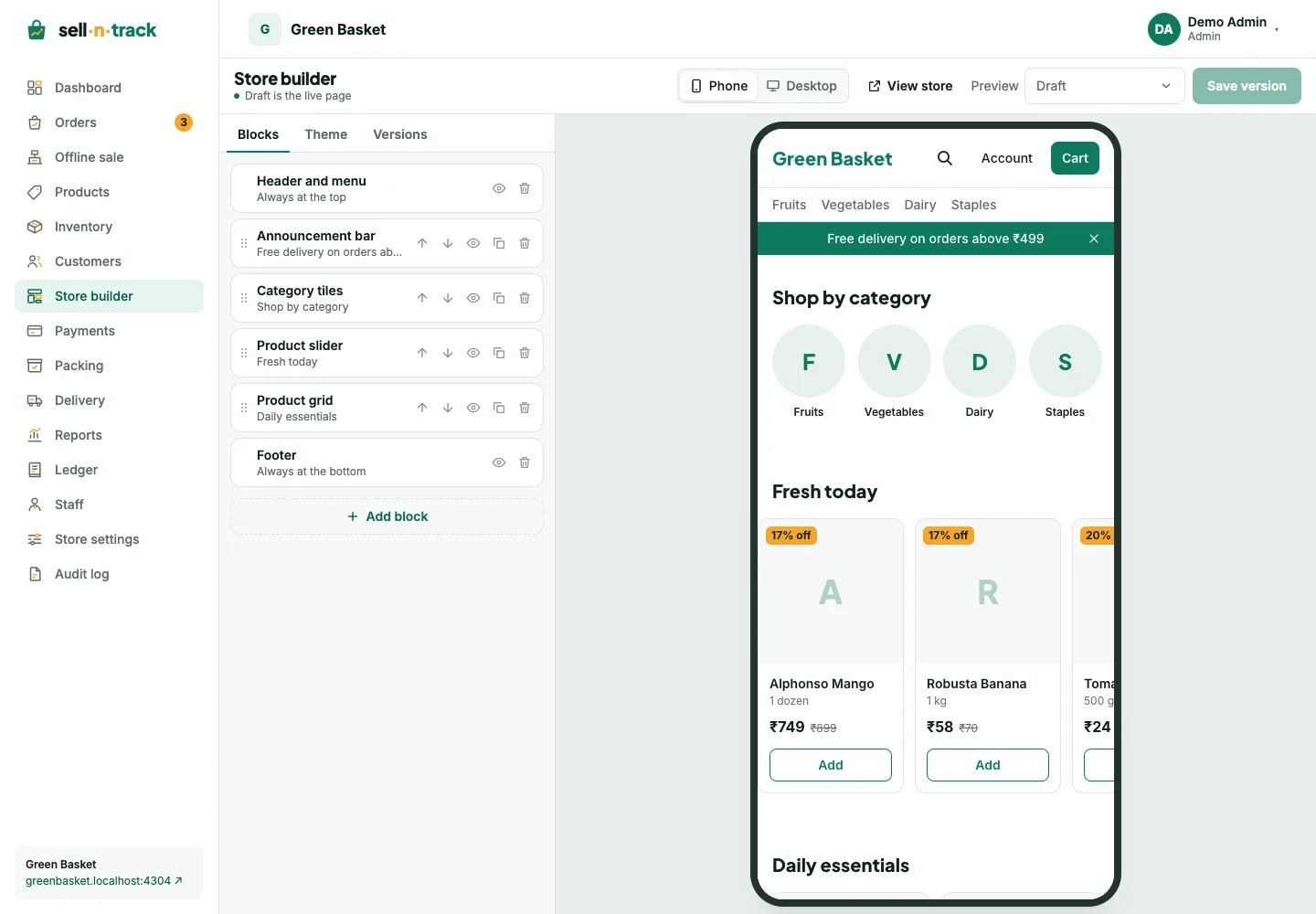
Arrange the page
- Open Store builder and choose Blocks.
- Select a block to edit its settings, or choose Add block.
- Use move controls or drag to change the order. Header, footer and the floating WhatsApp button have fixed positions.
- Duplicate reusable blocks, hide blocks temporarily, or set Show from and Hide after dates.
- Use Phone and Desktop to check both layouts.
The eleven types cover the header, announcement bar, banner slider, product slider, product grid, category tiles, single banner, image with text, rich text, footer and WhatsApp button. Image and product blocks need their content filled in before they are ready.
Clicking a block in the draft preview opens its settings. Edits autosave to the draft; they do not change the live page. Check the save status before leaving.
Save a version
Choose Save version, optionally give it a useful name, then save. It appears under Versions as Not released. Further draft edits do not change that snapshot.
Release and roll back
Choose Release on the version you want, then confirm. Shoppers see that version, and the previous one is marked with its last-live time. To roll back, release an older saved version.
Use New draft from this to copy a version into your draft. This replaces the draft, not the saved version. The preview picker can show the draft, live page or saved versions; saved-version previews are read only.
Theme and permissions
The Theme panel controls the logo, tab icon, colours and font. Theme changes affect the storefront, so review them as well as the page blocks.
Editing and publishing are separate permissions. An editor can prepare and save versions without being able to release them. A viewer can inspect previews. See Staff and permissions.