
Appearance
Sales, tax and collections reports
Reports answers what was sold, which money was received and how it was paid. Choose dates using the store's clock so the figures match the days the business works to.
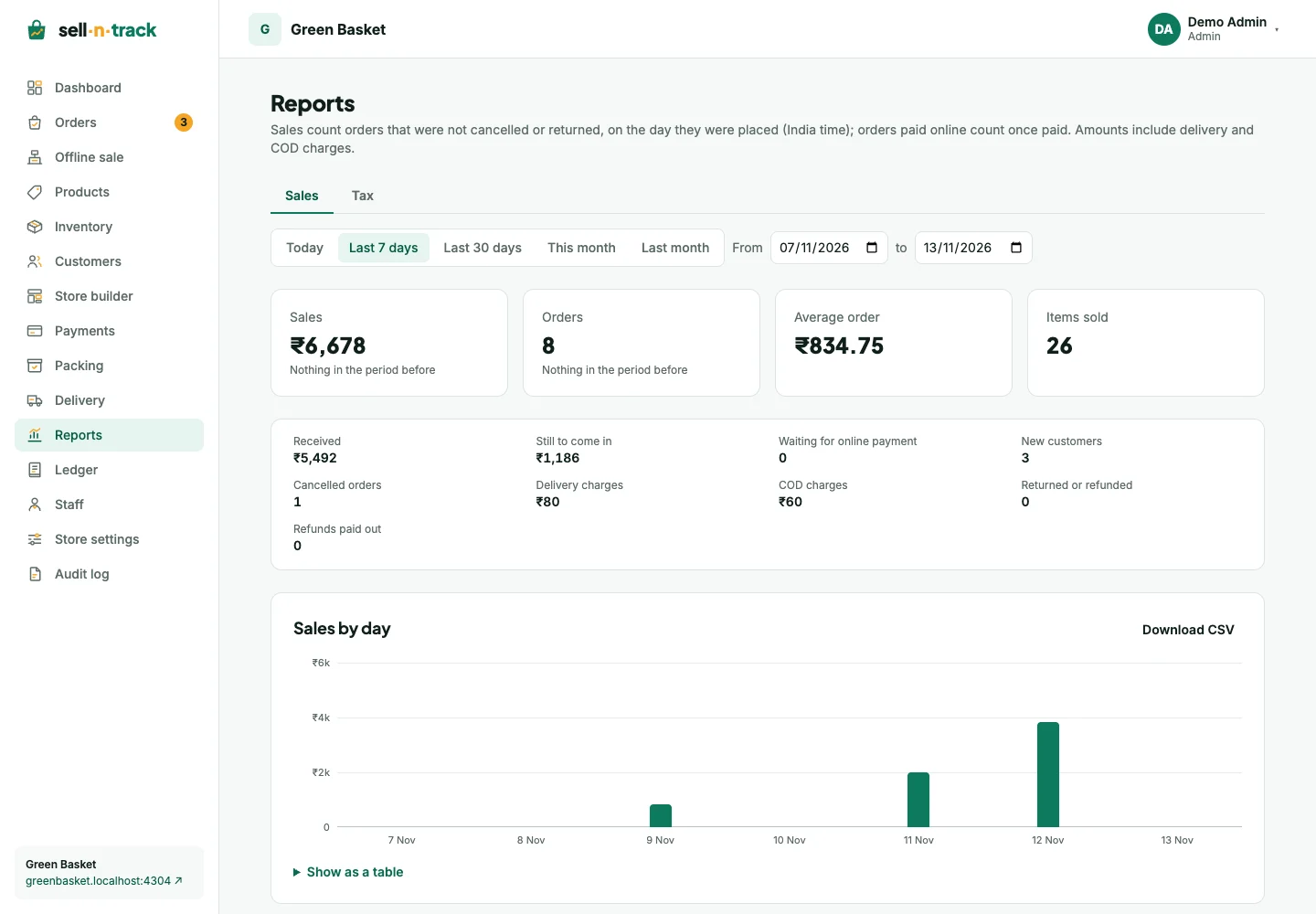
Choose a range
Open Reports. Use Today, Last 7 days, Last 30 days, This month or Last month, or enter custom dates. The comparison period helps explain movement in sales rather than treating a single day on its own.
Read the sales figures
The sales view separates goods, delivery and COD charges and groups results by day, product, payment method and order status. Check amounts received alongside amounts still to collect.
An unpaid online order is awaiting payment, not a received online sale. Cancelled and returned orders change sales; refunds are also reported as money paid back. Use the same range when tracing a difference to an order.
Tax and collections
The Tax tab groups tax by component and rate, includes HSN summaries and business-buyer invoices, and lists issued documents and credit notes. Missing HSN details need attention on the products rather than a manual edit to an issued invoice.
Collections shows money received in person, by person and mode, including doorstep and counter payments. Cash handover is the movement of that collected cash back to the store; it is not additional revenue.
Export and compare
Use Download CSV beside the table you need. Preserve the column headings when sharing the file. Exported figures use the selected range.
For business spending and other money in or out, use Ledger. Its entries are separate from order sales.