
Appearance
Invoices and counter sales
Use the order's document view for its proforma, issued invoice or credit note. Counter sales record an in-person payment and issue the invoice as part of completing the sale.
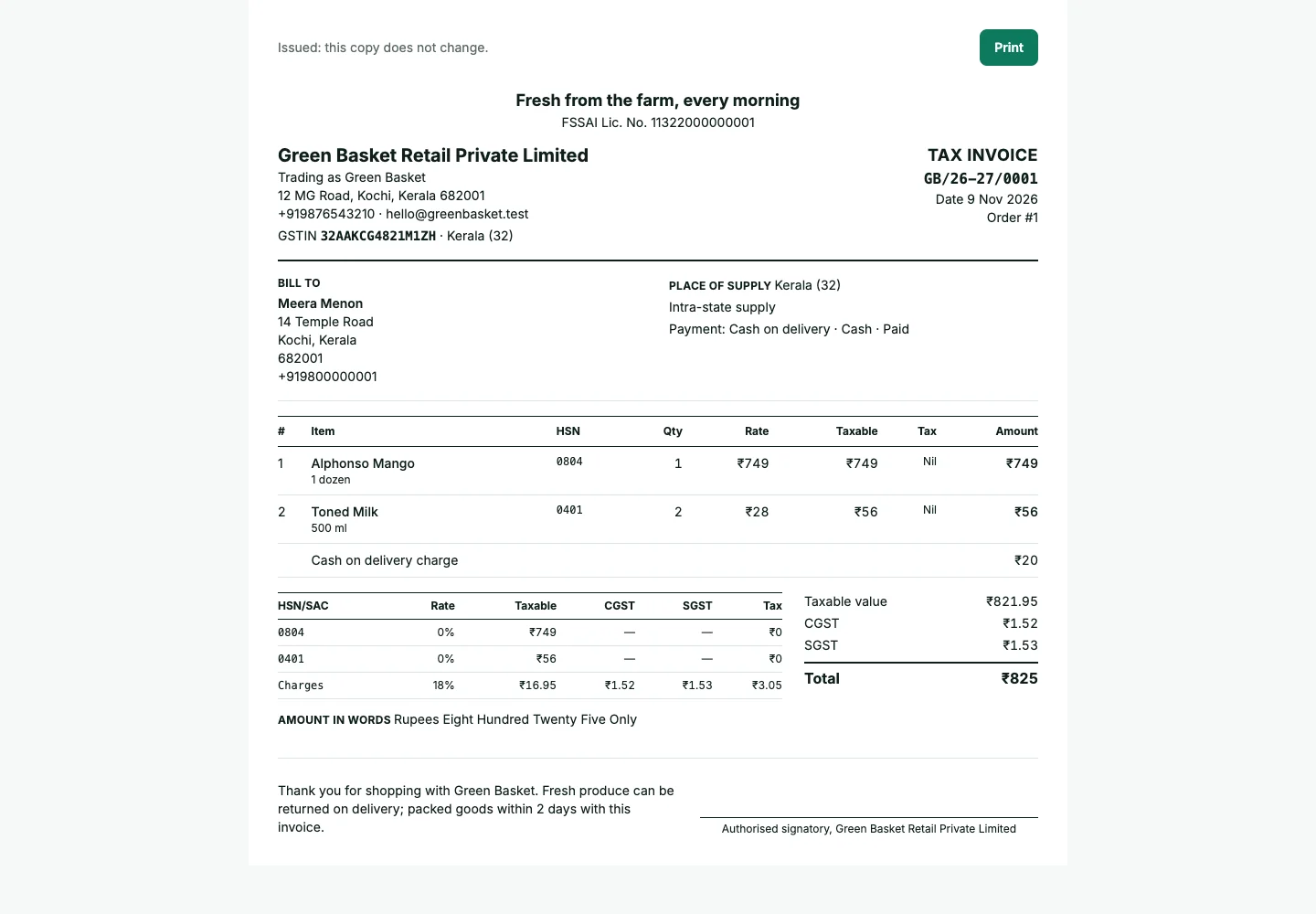
When a document is issued
An unshipped normal order has a proforma with no invoice number. Shipping issues the invoice once. Repeating a status request does not issue another number. A completed counter sale is already delivered, paid and invoiced.
Invoice settings provide the prefix and seller details. A composition store uses Bill of supply; a store without GSTIN gets a plain invoice. Documents with tax show the relevant line and summary breakdowns.
Add a business buyer's GSTIN before issue. Once issued, the document's buyer and tax details are locked. Cancelling an issued order or picking up a return creates a credit note against it.
Print
Open the document from the order and choose Print. The layout is designed for A4. Check the preview before printing or saving a PDF.
Make a counter sale
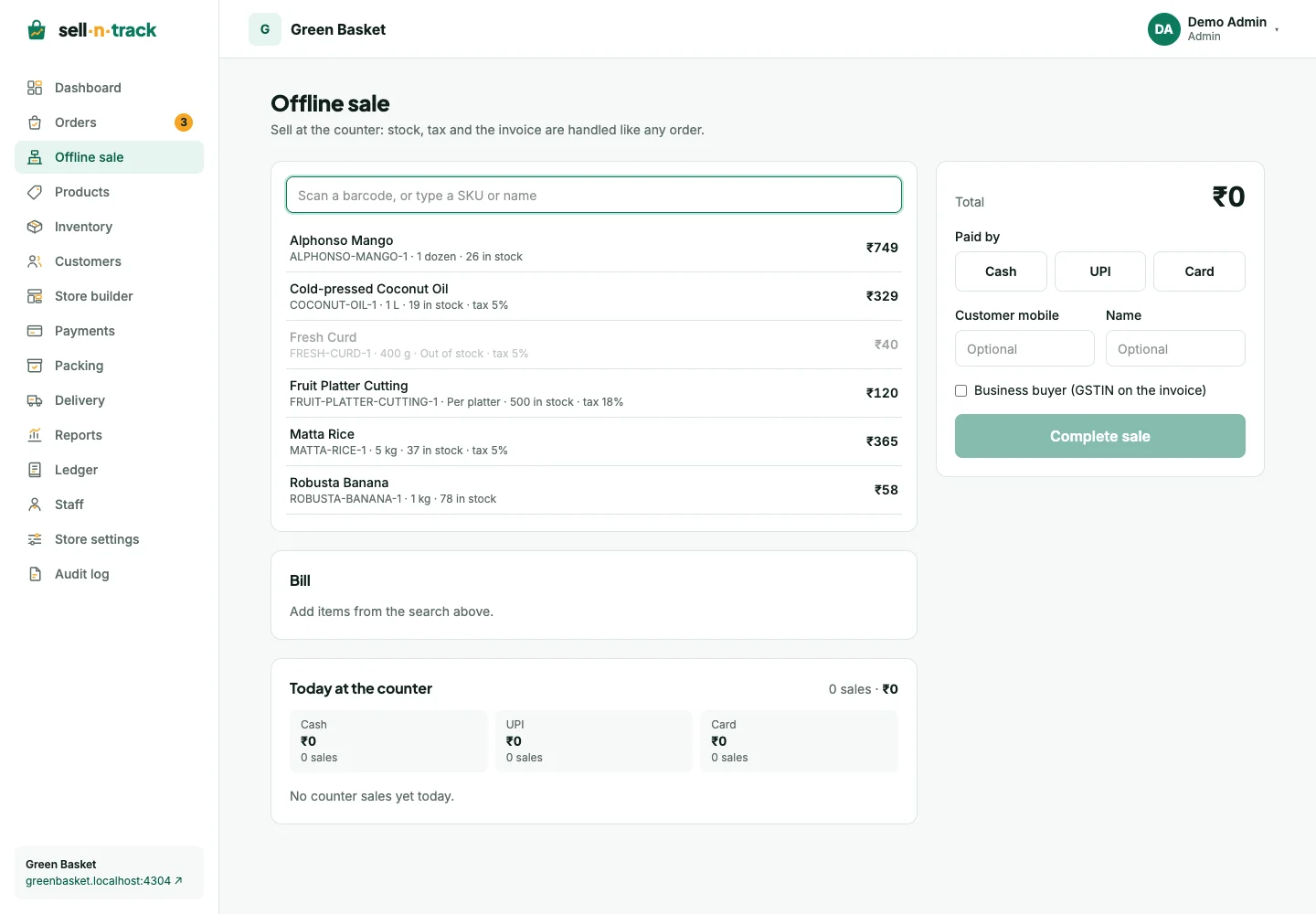
- Open Offline sale and search by SKU or product name. A barcode scanner that types the SKU can use the search field.
- Add the variants and quantities. Available stock still applies.
- Choose cash, UPI or card. Optionally add the customer's mobile and business details.
- Review the total, complete the sale, then open its invoice.
If a price or total changed during the sale, review the new amount instead of submitting the old one again. The counter list records the sale and who made it.
For money paid back later, use Returns and refunds.