
Appearance
Products and variants
A product is what shoppers browse. Its variants hold the options, SKU, selling unit, price and stock for each choice they can buy.
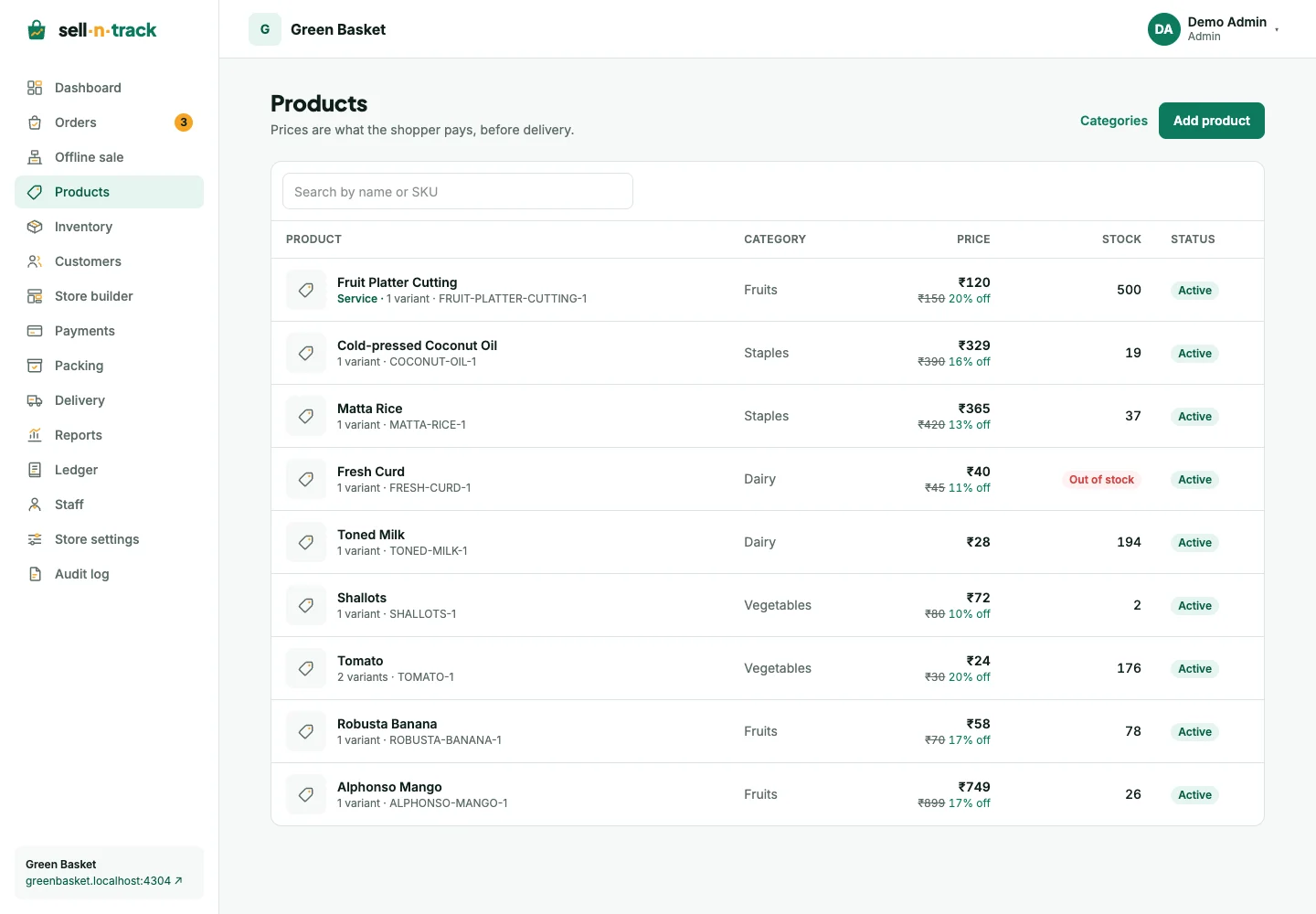
Add a product
- Open Products, then Add product.
- Enter a name. The URL slug follows the name until you change it yourself.
- Enter the first variant's SKU, selling unit, MRP, selling price and stock.
- Add options and more variants when needed: for example, Size and Colour.
- Set a low-stock threshold and minimum or maximum order quantity where useful.
- Choose a category, tax treatment and HSN or SAC code, then create the product.
Every product has at least one variant. SKUs must be unique in the store. A price above MRP is refused; the error identifies the SKU.
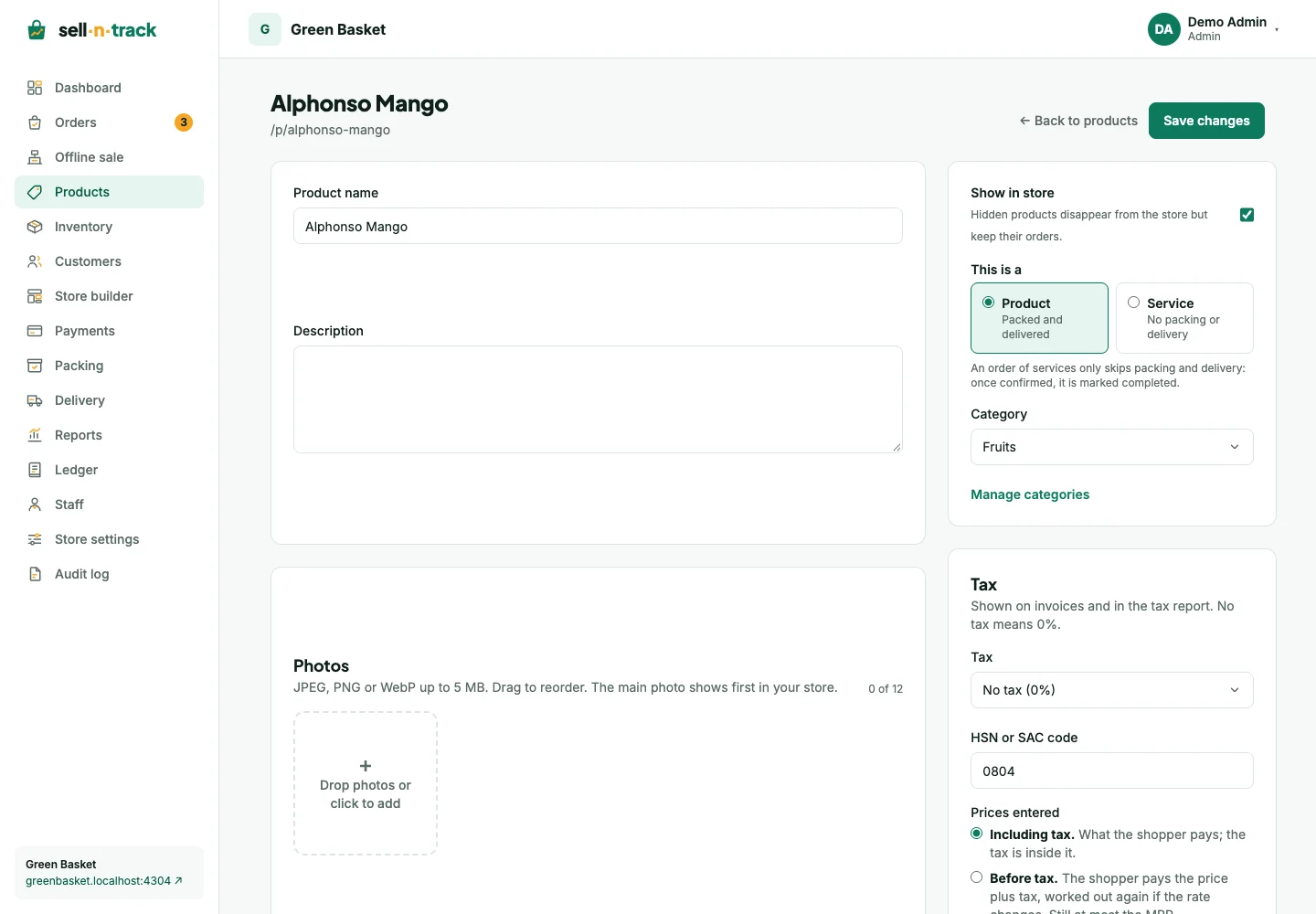
Prices and taxes
Choose Including tax when the amount you enter is already the shopper price. Choose Before tax when tax should be added to your base price. Read the shopper-price hint and keep the result within MRP.
Select No tax, a saved store tax class, or the product's own taxes. Manage reusable rates under Store settings → Taxes. See Store settings.
Photos, categories and availability
Create the product before adding photos. Upload JPEG, PNG or WebP, then choose the main photo and drag to reorder. Delete an unwanted photo from its controls.
Categories allow one level of subcategories. An empty category can be deleted; move its products or children first if deletion is blocked.
Turn off Show in store to take a product off sale while keeping its order history. Use Service for work that needs no packing or delivery; a services-only order is completed after confirmation. Mixed orders still deliver their physical goods.
For changes to an existing stock balance, use Inventory.